
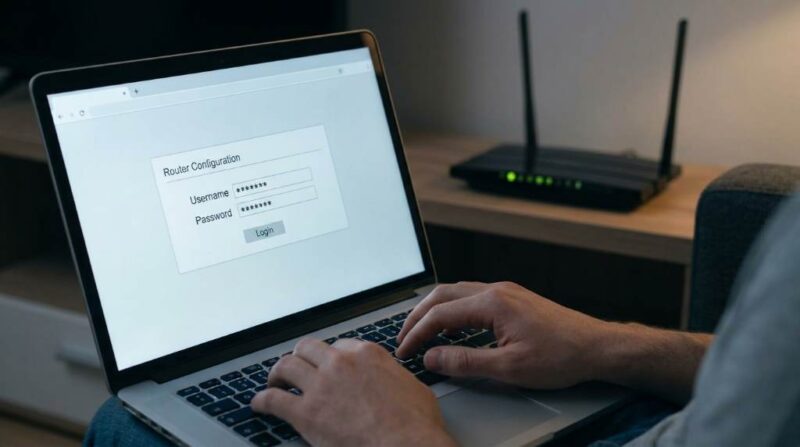
Your home WiFi network is the gateway to everything digital in your life. According to recent cybersecurity reports, over 80% of households in the United States are running at least one vulnerable device on their home network, and cyberattacks targeting residential WiFi have surged by 65% in recent years. Knowing how to protect your home WiFi network from hackers is no longer optional. It is a basic necessity for every homeowner and renter alike. This guide walks you through every step you need to take to lock down your network and keep cybercriminals out for good.
Why Home WiFi Security Matters More Than Ever
Hackers today are more sophisticated, more patient, and better equipped than ever before. They actively scan neighborhoods for unsecured or poorly secured networks using tools that run automatically. Once inside your network, they can steal personal data, hijack your devices, monitor your activity, or even use your connection for illegal activity. Understanding the real threat landscape is the first step toward building a stronger defense.
Most people assume their internet service provider (ISP) sets up a secure network by default. Unfortunately, that assumption is dangerously wrong. Default router settings are publicly documented and widely exploited by bad actors. Taking control of your own network security is the only reliable approach.
Change Your Default Router Credentials Immediately
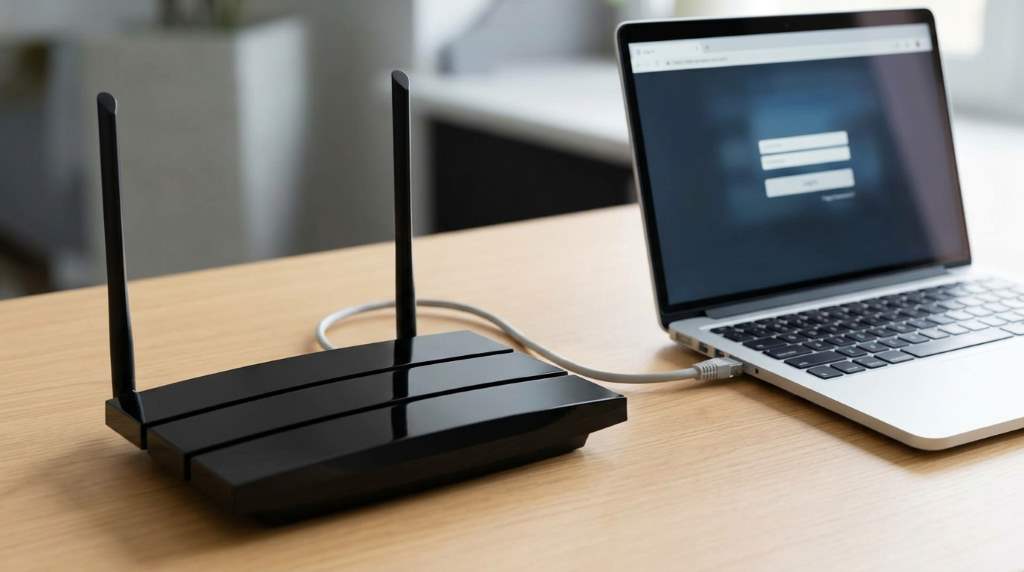
Every router ships with a default admin username and password, such as “admin/admin” or “admin/password.” These defaults are listed in public databases that hackers access within seconds. Changing these credentials is the single most impactful first step you can take. Log in to your router’s admin panel through your browser using the router’s IP address, typically 192.168.1.1 or 192.168.0.1.
Once inside, navigate to the administration settings and update both the username and password. Choose a strong password with a mix of uppercase letters, lowercase letters, numbers, and symbols. Avoid using obvious details like your address or family name. A password manager can help you generate and store a complex credential safely.
Set a Strong and Unique WiFi Password
A weak WiFi password is an open invitation to hackers lurking nearby. Many households still use simple passwords like “password123” or their street address. Your WiFi password should be at least 16 characters long and completely random. Treat it like you would treat a bank PIN, with maximum secrecy.
After updating your password, share it only with trusted individuals in your household. Consider using a QR code generator to share access with guests without revealing the actual password. Regularly rotating your WiFi password every three to six months adds an extra layer of protection. This simple habit significantly reduces the risk of unauthorized access over time.
Use the Latest WiFi Encryption Standard
Encryption is the technology that scrambles your data so outsiders cannot read it. Older standards like WEP and WPA are now completely broken and easily cracked by modern hacking tools. You should always use WPA3, which is the current gold-standard encryption protocol for home networks. If your router does not support WPA3, at minimum use WPA2-AES.
To update your encryption setting, log in to your router admin panel and find the wireless security settings. Select WPA3 or WPA2-AES from the dropdown menu and save your changes. Upgrading to a router that supports WPA3 is a worthwhile investment if your current hardware is outdated. This single change can block the majority of passive WiFi attacks immediately.
Keep Your Router Firmware Updated
Router manufacturers regularly release firmware updates to patch security vulnerabilities. Many homeowners never update their router firmware, leaving known exploits open for hackers to use. Updating your firmware closes these gaps and often improves router performance as well. Check your router’s admin panel or the manufacturer’s website for firmware update instructions.
Some modern routers offer automatic firmware updates, which you should enable right away. Brands like ASUS, Netgear, and TP-Link now push security patches automatically on their newer models. If your router is older than five years, it may no longer receive security updates at all. In that case, replacing your router is the smarter and safer decision.
Create a Separate Guest Network
A guest network is a separate WiFi access point that runs alongside your main network. Visitors and smart home devices connect to the guest network instead of your primary one. This approach contains potential threats by isolating untrusted devices from your personal computers and phones. Most modern routers make setting up a guest network straightforward through the admin panel.
Assign a strong, unique password to your guest network just as you would your main network. Disable the ability for guest network users to see or communicate with devices on your main network. Additionally, connecting smart home devices like thermostats, cameras, and doorbells to the guest network limits the damage if one of those devices gets compromised. This segmentation strategy is a favorite tactic among cybersecurity professionals.
Disable WPS and Remote Management
Wi-Fi Protected Setup (WPS) was designed to make connecting devices easier, but it introduced a serious vulnerability. Hackers can crack the WPS PIN in a matter of hours using brute-force tools. Disabling WPS entirely removes this attack vector without affecting your everyday WiFi use. Look for the WPS toggle in your router’s wireless settings and turn it off.
Remote management allows you to access your router’s admin panel from outside your home network. While convenient, it also gives hackers a potential entry point if your credentials are weak. Unless you have a specific need for remote access, disable this feature completely. Most home users never need it, and turning it off reduces your attack surface significantly.
Use a DNS Firewall or Secure DNS Service
Switching to a secure DNS service like Cloudflare (1.1.1.1) or Google (8.8.8.8) adds a meaningful security layer. These services block connections to known malicious websites before they can reach your devices. Some DNS providers also offer parental controls and ad-blocking as part of the service. You can change your DNS settings directly in your router’s admin panel under the network settings.
Advanced users can also use a DNS firewall like NextDNS or Pi-hole to filter out threats proactively. These tools analyze every DNS request leaving your network and block suspicious activity in real time. Setting up NextDNS, for example, takes less than ten minutes and dramatically improves your network’s resilience. It is one of the most underused yet highly effective tactics available to home users.
Monitor Connected Devices Regularly
One of the best ways to know if something is wrong is to check which devices are connected to your network. Most router admin panels include a connected devices list that updates in real time. Review this list weekly and look for any device you do not recognize. An unfamiliar device could indicate that someone has gained unauthorized access.
Several apps like Fing, available for iOS and Android, make monitoring your network even easier. They display every connected device along with its manufacturer name and IP address. If you spot something suspicious, change your WiFi password immediately and restart your router. Staying alert to unusual activity is a critical part of knowing how to protect your home WiFi network from hackers on an ongoing basis.
Enable Your Router’s Built-In Firewall
Most routers include a built-in firewall that blocks unwanted incoming traffic by default. However, this firewall is sometimes turned off in factory settings or disabled during installation. Log in to your router admin panel and confirm that the firewall is active. A properly configured firewall can stop a wide variety of automated attack attempts before they reach your devices.
Additionally, consider enabling Stateful Packet Inspection (SPI), a more advanced firewall feature available on many modern routers. SPI monitors the state of active connections and rejects packets that do not match a legitimate session. Pairing your router firewall with security software on individual devices creates a layered defense strategy. Layered security is the foundation of any serious cybersecurity approach.
Consider a VPN for Your Entire Network
A Virtual Private Network (VPN) encrypts all traffic leaving your network and routes it through a secure server. Using a VPN at the router level protects every device in your home simultaneously. Services like ExpressVPN, NordVPN, and Surfshark offer router-compatible apps and detailed setup guides. This approach is especially valuable if you frequently handle sensitive financial or personal information online.
A network-wide VPN also prevents your ISP from tracking your browsing activity and selling that data to third parties. While a VPN does slightly reduce your internet speed, the privacy and security benefits outweigh the tradeoff for most users. Look for a VPN provider with a verified no-logs policy for the highest level of privacy assurance. This step completes a comprehensive strategy for how to protect your home WiFi network from hackers.
Conclusion
Protecting your WiFi network does not require an advanced degree in cybersecurity. The steps outlined in this guide are practical, affordable, and highly effective. From changing your default router credentials to enabling WPA3 encryption, each action you take makes your network significantly harder to breach. Start with the basics today and build your security layer by layer.
If you want to know how to protect your home WiFi network from hackers in the most complete way possible, consistency is the key. Make network security a regular habit, not a one-time task. Review your connected devices, update your firmware, and rotate your passwords on a routine schedule. Share this guide with family and friends so everyone around you stays protected too.
Frequently Asked Questions
What is the most important step to protect your home WiFi from hackers?
Changing your default router admin credentials and enabling WPA3 encryption are the two most critical steps you can take immediately.
How often should I change my WiFi password?
You should change your WiFi password every three to six months, or immediately after sharing it with a guest.
Can my neighbor steal my WiFi without me knowing?
Yes, unauthorized users can connect to your WiFi without your knowledge, which is why monitoring connected devices regularly is essential.
Does a VPN protect my home WiFi network?
A VPN encrypts your internet traffic but does not replace proper router security measures like strong passwords and updated firmware.
Is WPA2 still safe for home WiFi networks?
WPA2-AES is still reasonably secure, but upgrading to WPA3 is strongly recommended for the best protection available today.

Leave a Reply